
Introduction
So, you bought a LoRa board and want to build a communication node? The first step is learning how to flash Meshtastic firmware correctly. Without this step, your device is just a brick.
But before you can send your first encrypted text, you need to install the operating system. This is called flashing the firmware.
In the past, this required complex coding skills and Python scripts. In 2026, it is much easier.
This guide will show you how to use the Meshtastic Web Flasher to get your node running in under 5 minutes.
🛠️ What You Need Before We Start
Don’t skip this. 90% of errors happen because of bad hardware.
- A Meshtastic-compatible Board: (Heltec V3, T-Beam, T-Echo, or Rak WisBlock).
- A USB Data Cable: ⚠️ Critical Warning: Many USB cables are “charge only.” They will power the board but won’t send data. Use a thick, high-quality cable. If your computer doesn’t make a sound when you plug it in, swap the cable.
- Google Chrome or Edge Browser: The Web Flasher needs a browser that supports WebSerial. Safari (on Mac) often causes issues.
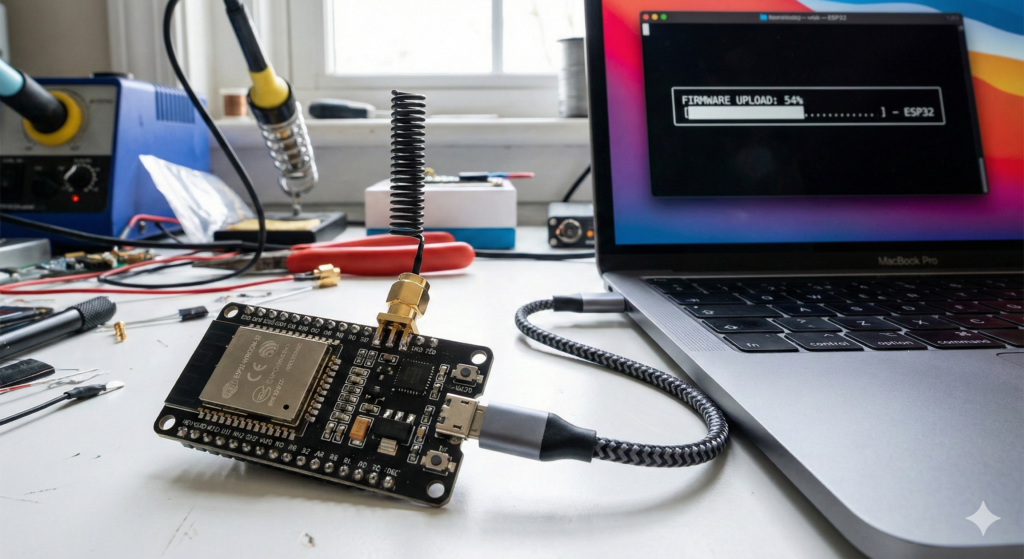
Step-by-Step: Flashing Your Device
Step 1: Connect to Your Computer
Plug your board into the USB port. You should hear a “ding” sound from Windows/Mac. If not, check your cable again.
Step 2: Open the Web Flasher
Go to flasher.meshtastic.org. This is the official tool.
Step 3: Select Your Hardware
This is the most important step. Select your specific device from the dropdown menu.
- If you have a Heltec WiFi LoRa 32 V3, select
Heltec V3. - If you have a LILYGO T-Beam, select
T-Beam(check the version on the board, usually V1.1).
Step 4: Pick the Firmware Version
Always choose the latest Stable (Beta/Alpha versions are for testers and might be buggy).
Step 5: Flash!
Click the big “Flash” button. A window will pop up asking you to select a COM port (e.g., COM3 or USB Serial). Select your device and click Connect.
Wait about 2-3 minutes. You will see a progress bar. DO NOT UNPLUG THE CABLE.
Once it says “Update Complete,” your board will reboot, and you will see the Meshtastic logo on the screen (if your board has one).
❓ Why Do You Need to Flash/Update Firmware?
You might think: “My board arrived working, why change it?” Here is the truth: The factory firmware on most Chinese boards (Heltec, Lilygo) is often outdated or just a generic test script. To join the global mesh network, you need the official Meshtastic software.
Updating gives you three critical benefits:
- Better Battery Life: New updates optimize deep sleep modes.
- Longer Range: Algorithms for LoRa hop settings improve with every version.
- New Features: Things like “Store and Forward” (saving messages for offline users) only work on recent firmware versions (2.5.x and newer).
⚠️ The “Driver Hell” (And How to Fix It)
If you plug in your board and the Web Flasher says “No compatible devices found,” don’t panic. You are missing a USB driver.
There are two main chips used in these boards. You need to download the driver for your specific chip:
1. CP210x Driver (Most Common)
- Used by: Most Heltec V3 and older T-Beams.
- Fix: Search Google for “Silicon Labs CP210x Universal Windows Driver” and install it. Restart your PC.
2. CH9102 / CH340 Driver
- Used by: Newer T-Beams and T-Echo.
- Fix: Search for “WCH CH9102 driver” (often found on Chinese manufacturer sites).
Pro Tip: If you are on a Mac, you might not need drivers, but you MUST use a browser like Chrome or Brave. Safari does not support the WebSerial API needed to flash the device.
❓ Troubleshooting: “It Failed!”
If the flasher gets stuck or gives an error, try these fixes:
- Install Drivers: If your computer doesn’t see the device, you might need the CP210x or CH9102 drivers. Google “CP210x Universal Windows Driver” and install it.
- Hold the Boot Button: Some boards (like older ESP32s) need help entering “download mode.”
- Unplug the board.
- Hold down the BOOT button on the board.
- Plug it in (while holding BOOT).
- Click Flash, then release the button.
- Try a Different Cable: Yes, I am saying it again. It is usually the cable.
What’s Next?
Now that your board is alive, you need to connect it to your phone via Bluetooth and set up your channel.
Check out our next guide: How to Text When Cell Towers Are Dead